Access
Everyone should find this easy.
This page explains the access button, what each of its tools does, and what we have built into the site itself. If anything here is unclear, or something on the site is hard to use, please tell me and I will fix it.
How to use the access button
A small round button sits in the bottom left corner of every page. It opens a panel of tools that change how the site looks and behaves for you. Nothing you change is sent anywhere, and you can undo it at any time.
- Open the panel. Click the round button, or press Tab on your keyboard until the circular focus ring reaches it, then press Enter or the space bar.
- Choose a tool. Tools are grouped under Profiles, Content Adjustments, Visual and Navigation Aids, Colour Adjustments and Additional Tools. Press a tool once to switch it on, and press it again to switch it off.
- Try one at a time. Most people start with High Contrast, Large text through their own browser, or Stop Animations, then add more only if they want them.
- Start again if you need to. The circular arrow button at the top of the panel resets every tool at once.
- Close the panel. Press the cross at the top of the panel, or press Escape. Your choices stay while you keep browsing.

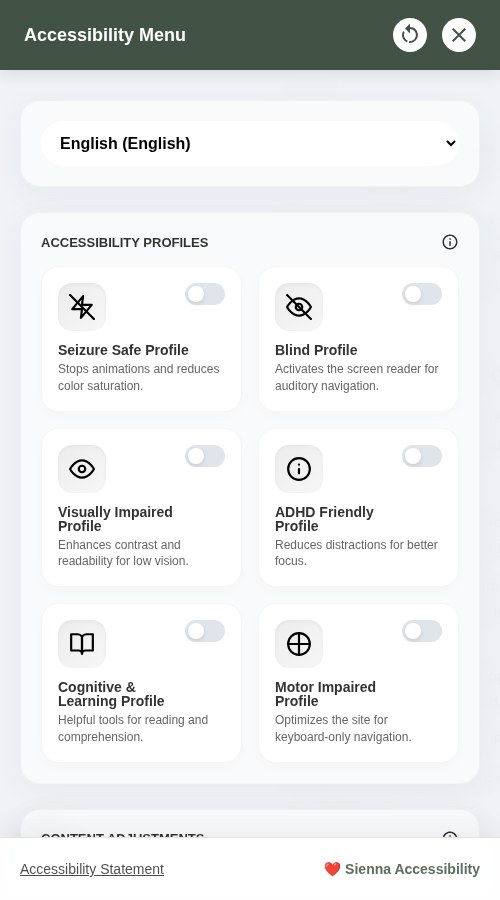
The access button is an addition to your own browser settings. Changing text size in the browser, or turning on reduced motion on your phone or computer, also works here and is often the simplest route.
Profiles
- Seizure SafeStops animations and softens colours, which helps if movement or bright colour is uncomfortable.
- Blind ProfileAdds a speech interface so you can hear the page read and move through it by voice.
- Visually ImpairedRaises contrast and makes text easier to read.
- ADHD FriendlyQuietens the page so there is less to look at at once.
- Cognitive & LearningAdds reading and comprehension help, such as a reading guide and simpler spacing.
- Motor ImpairedMakes the site easier to drive with a keyboard instead of a mouse.
Content adjustments
- Font WeightMakes the text thicker so letters hold their shape at small sizes.
- Line HeightAdds more space between lines of writing.
- Letter SpacingAdds more space between letters.
- Dyslexia FontSwaps the typeface for one designed to be easier to follow.
- Highlight LinksMarks every link so you can see where you can click.
- Highlight TitlesMarks every heading so you can see how the page is organised.
Visual and navigation aids
- Super FocusDims everything except the part of the page you are reading.
- Reading GuideDraws a band across the page so you can keep your place on a line.
- Big CursorMakes the mouse pointer much larger so you can find it.
- Screen ReaderReads the page out loud as you move through it.
- Page StructureShows a simple outline of the page so you can jump to a section.
- PDF ReaderOpens a file such as your gift list PDF in a view you can adjust.
Colour adjustments
- High ContrastDarkens text and lightens the background for the strongest difference.
- Light ContrastMoves the page towards dark text on a pale background.
- Dark ContrastMoves the page towards pale text on a dark background.
- MonochromeRemoves colour and leaves only light and dark.
- Low SaturationMakes colours paler and less demanding.
- High SaturationMakes colours stronger so shapes and labels stand out.
Additional tools
- Stop AnimationsFreezes anything that moves, including the gentle drifting on this site.
- Hide ImagesRemoves photographs so only the writing is left.
- Image TooltipsShows the description of a photograph when you point at it.
What is built into the site itself
The access button helps, but the site is written to be usable without it. We aim for WCAG 2.2 Level AA. In practice that means:
- Text and buttons use colours with enough contrast to read comfortably.
- Everything can be reached with a keyboard alone, and the page you are on shows a visible outline around whatever is selected.
- Every button, link and box has a clear label, including the ones that show only a picture.
- Headings follow a sensible order, so a screen reader can move through a page section by section.
- Error messages say what went wrong and what to do next, and are read out by screen readers as they appear.
- Taps and clicks have room to land, at least the size of a fingertip.
- Gentle movement on the page stops automatically if your device asks for reduced motion, and the access button can stop it for you.
- There are no time limits. You can leave a gift search half finished and come back.
- The Gift Finder shows which question you are on, and going back never loses your answers.
- The Gift Finder is free and needs no account, so no one is locked out of it by a password they cannot manage.
Your privacy and the access button
The access button is provided by Sienna, a free and open source widget. According to its own statement it sets no cookies, no tracking pixels and no fingerprints. It runs inside your own browser, and nothing about your choices is sent to a server. Your gift list and your notes are stored separately, as described on the account and privacy pages.
Tell me if something is hard to use
If a page is confusing, a button is hard to read, or a tool in the access button does not work here, please write to me. Tell me which page you were on, what you were trying to do, and what got in the way. I read every message and I would much rather hear about it and put it right.
Email hello@theartofgifting.co.uk
You can also use the feedback form on the your stories page. Both routes reach me.